
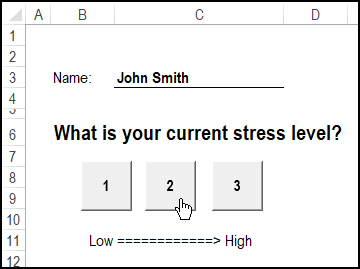
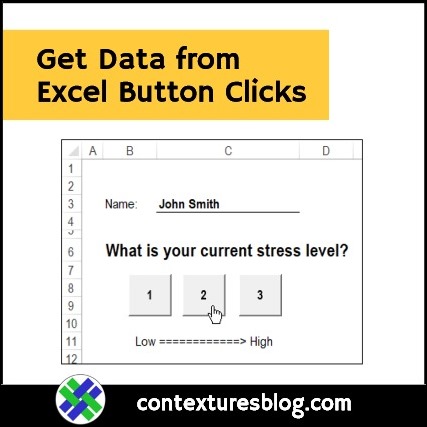
Here’s a simple example that shows how you can get data from Excel button clicks. There are 3 buttons on one sheet, and if you click one, the date and time are recorded on another sheet, along with your name and the button number.
Sheet with Buttons
This example could be used during a short test, with the participant clicking a button at specific intervals, to indicate their current stress level.
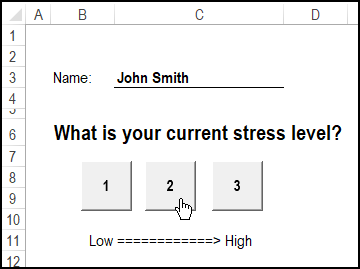
In this sample file, there is a sheet named Input, shown below. The participant’s name goes at the top of the sheet, in the underlined cell.
Then, during the test, click the buttons that match your stress level, and Excel records the information.
Sheet with Collected Data
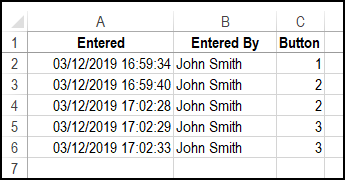
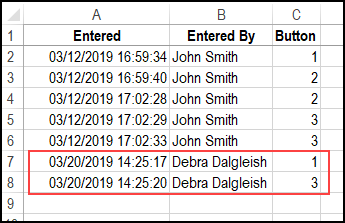
On another sheet, named TestData, the records are stored.
- A – Date and time of button click
- B – Name from Input Sheet
- C – Button number that was clicked
Set Up the Input Sheet
In this example, I inserted 3 buttons from the Form Controls, on the Developer Tab.
NOTE: After you add a button, the Assign Macro window opens. Click Cancel, to close that window – you can assign a macro later.
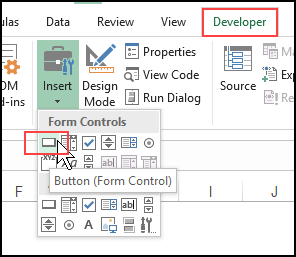
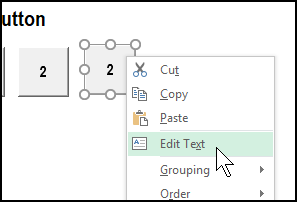
After you add each button, right-click on it, and click Edit Text
Then, type a number on each button – these buttons are 1, 2 and 3.
Create a Name Cell
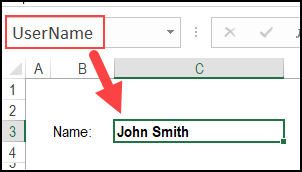
Near the top of the Input sheet, there’s a cell with a bottom border, and “Name:” is in the cell to the left of it.
The underlined cell is named “UserName”, and the macro will get the value from that cell. There are instructions for naming ranges on my Contextures site.
Add Input Instructions
Above the buttons, I added a question – “What is your current stress level?”.
Then, I formatted that text in 18 pt bold font, so it stands our on the worksheet.
Below the buttons, I added text to show that buttons at the left represent low stress, and buttons at the right are for high stress.
Low ============> High
Macro for Buttons
There’s one macro in the workbook, and it adds the data to the TestData sheet. All 3 buttons will run the same macro.
Here’s the macro code, and it is stored in a regular code module in the workbook.
Sub AddButtonData()

Dim wsData As Worksheet
Dim wsIn As Worksheet
Dim nextRow As Long

Dim BtnText As String
Dim BtnNum As Long
Dim strName As String

Set wsIn = Worksheets("Input")
Set wsData = Worksheets("TestData")

With wsData
  nextRow = .Cells(.Rows.Count, "A") _
    .End(xlUp).Offset(1, 0).Row
End With

With wsIn
  BtnText = .Buttons(Application.Caller).Caption
  BtnNum = CLng(BtnText)
  strName = .Range("UserName").Value
End With

With wsData
  With .Cells(nextRow, 1)
    .Value = Now
    .NumberFormat = "mm/dd/yyyy hh:mm:ss"
  End With
  .Cells(nextRow, 2).Value = strName
  .Cells(nextRow, 3).Value = BtnNum
End With

End Sub
What the Macro Does
Here’s a quick overview of what the AddButtonData macro does.
- First, the macro sets variables for the Input sheet and the TestData sheet.
- Then, it finds the next available row in column A, on the TestData sheet.
From the Input sheet,
- the macro uses Application.Caller, to figure out which button was clicked, and gets the caption from that button.
- That caption text is converted to a number
- The name comes from the “UserName” cell.
On the TestData sheet
- The current date and time (Now) is added in column A, and formatted.
- The name is added to column B
- Button number goes into column C
Assign Macro to Buttons
The final step is to assign that macro to each of the three buttons.
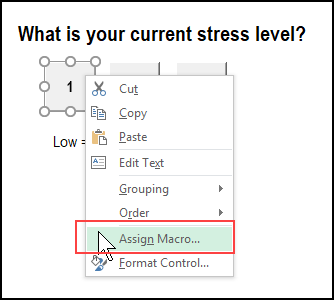
- Right-click on a button, and in the popup menu, click Assign Macro
- In the list of macros, click AddButtonData, and click OK
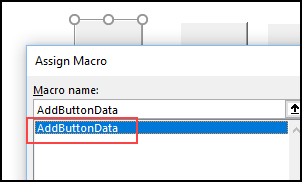
Repeat those steps for the remaining buttons.
Test the Buttons
To test the buttons, follow these steps:
- First, put your name in the underlined cell.
- Then, click one of the buttons
- Wait a couple of seconds, and click a different button
To see the data that was collected, go to the TestData sheet. You should see your name there, along with the date/time information, and the button numbers.
Customization Notes
The sample file only has 3 buttons, and you could add more, if needed. Just put a unique number on each button, so it can be identified.
Instead of using Form Control buttons, you could use shapes, such as rounded rectangles. That would give you a wider range of colours, instead of grey, grey or grey.
The sample file has a cell where the name is entered, and the macro uses that value. Another option is to get the name from the Office installation, or from the network.
Get the Sample File
To download the sample workbook for this example, go to the Excel Sample Files page on my Contextures website.
In the UserForms, VBA, Add-ins section, look for UF0047 – Click Button to Capture Data.
The zipped file is in xlsm format, so be sure to enable macros when you open the file, if you want to test the buttons.
____________________
Get Data from Excel Button Clicks
___________________
Original source: https://contexturesblog.com/archives/2019/03/21/get-data-from-excel-button-clicks/