
If you have a big Excel file, with lots of pivot tables and their source data, I’ve written a macro that might help you. The macros creates a detailed list of all the pivot tables in the workbook, so it’s useful for documentation, and some types of troubleshooting.
Macro Lists Pivot Table Details
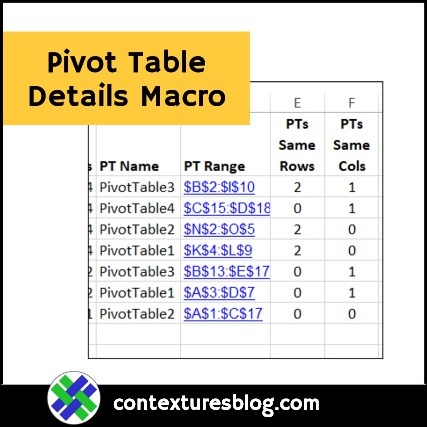
Here’s a screen shot of the first few columns in the pivot table details list that the macro creates.
It lists the sheet name, how many pivot tables are on the sheet, the pivot table names, and a hyperlinked range, where the pivot table is located.

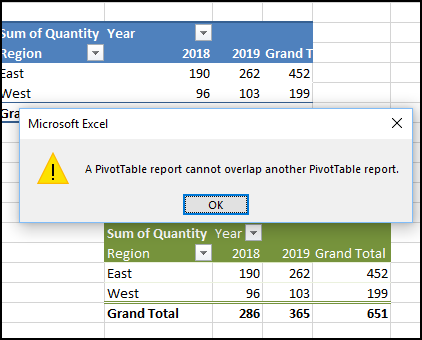
Columns E and F show if there are other pivot tables in the same columns or rows. If the pivot tables are too close together, you could end up with overlap error messages.
Source Data Information
For pivot tables that are based on Excel worksheet data (not in the Data Model), the list shows information about the source data too.
You can see the number of records, the column count in the source data, and the count of heading cells that contain text.

In column L (Head Fix), an “X” appears if the number of headings doesn’t match the number of columns. That can help you find and fix “field name not valid” problems.

Video: Pivot Table Details Macro
This video shows how the macro helps with trouble shooting, and you can get the sample file from my Contextures website, to follow along.
The Macro Code
Here is the code for the Pivot Table Details List macro. You can copy it to a regular code module in your workbook, then run it when needed.
Sub ListWbPTsDetails()
Dim ws As Worksheet
Dim wsSD As Worksheet
Dim lstSD As ListObject
Dim pt As PivotTable
Dim rngPT As Range
Dim wsPL As Worksheet
Dim rngSD As Range
Dim rngHead As Range
Dim pt2 As PivotTable
Dim rngPT2 As Range
Dim rCols As Range
Dim rRows As Range
Dim RowPL As Long
Dim RptCols As Long
Dim SDCols As Long
Dim SDHead As Long
Dim lBang As Long
Dim nm As Name
Dim strSD As String
Dim strRefRC As String
Dim strRef As String
Dim strWS As String
Dim strAdd As String
Dim strFix As String
Dim lRowsInt As Long
Dim lColsInt As Long
Dim CountPT As Long
On Error Resume Next

RptCols = 13
RowPL = 2

For Each ws In ActiveWorkbook.Worksheets
  For Each pt In ws.PivotTables
    CountPT = CountPT + 1
    If CountPT > 0 Then Exit For
  Next pt
  If CountPT > 0 Then Exit For
Next ws

If CountPT = 0 Then
  MsgBox "No pivot tables in this workbook"
  GoTo exitHandler
End If

Set wsPL = Worksheets.Add

With wsPL
  .Range(.Cells(1, 1), .Cells(1, RptCols)).Value _
    = Array("Worksheet", _
        "Ws PTs", _
        "PT Name", _
        "PT Range", _
        "PTs Same Rows", _
        "PTs Same Cols", _
        "PivotCache", _
        "Source Data", _
        "Records", _
        "Data Cols", _
        "Data Heads", _
        "Head Fix", _
        "Refreshed")
End With

For Each ws In ActiveWorkbook.Worksheets
  For Each pt In ws.PivotTables
    lRowsInt = 0
    lColsInt = 0
    Set rngPT = pt.TableRange2

    For Each pt2 In ws.PivotTables
      If pt2.Name <> pt.Name Then
        Set rngPT2 = pt2.TableRange2
        Set rRows = Intersect(rngPT.Rows.EntireRow, _
            rngPT2.Rows.EntireRow)
        If Not rRows Is Nothing Then
          lRowsInt = lRowsInt + 1
        End If
        Set rCols = Intersect(rngPT.Columns.EntireColumn, _
            rngPT2.Columns.EntireColumn)
        If Not rCols Is Nothing Then
          lColsInt = lColsInt + 1
        End If
      End If
    Next pt2

    If pt.PivotCache.SourceType = 1 Then  'xlDatabase
      Set nm = Nothing
      strSD = ""
      strAdd = ""
      strFix = ""
      SDCols = 0
      SDHead = 0
      Set rngHead = Nothing
      Set lstSD = Nothing

      strSD = pt.SourceData

      'worksheet range?
      lBang = InStr(1, strSD, "!")
      If lBang > 0 Then
        strWS = Left(strSD, lBang - 1)
        strRefRC = Right(strSD, Len(strSD) - lBang)
        strRef = Application.ConvertFormula( _
              strRefRC, xlR1C1, xlA1)
        Set rngSD = Worksheets(strWS).Range(strRef)
        SDCols = rngSD.Columns.Count
        Set rngHead = rngSD.Rows(1)
        SDHead = WorksheetFunction.CountA(rngHead)
        GoTo AddToList
      End If

      'named range?
      Set nm = ThisWorkbook.Names(strSD)
      If Not nm Is Nothing Then
        strAdd = nm.RefersToRange.Address
        SDCols = nm.RefersToRange.Columns.Count
        Set rngHead = nm.RefersToRange.Rows(1)
        SDHead = WorksheetFunction.CountA(rngHead)
        GoTo AddToList
      End If

      'list object?
        For Each wsSD In ActiveWorkbook.Worksheets
          Set lstSD = wsSD.ListObjects(strSD)
          If Not lstSD Is Nothing Then
            strAdd = lstSD.Range.Address
            SDCols = lstSD.Range.Columns.Count
            Set rngHead = lstSD.HeaderRowRange
            SDHead = WorksheetFunction.CountA(rngHead)
            GoTo AddToList
          End If
        Next
    End If

AddToList:
     If SDCols <> SDHead Then strFix = "X"
     With wsPL
        .Range(.Cells(RowPL, 1), _
            .Cells(RowPL, RptCols)).Value _
          = Array(ws.Name, _
              ws.PivotTables.Count, _
              pt.Name, _
              pt.TableRange2.Address, _
              lRowsInt, _
              lColsInt, _
              pt.CacheIndex, _
              pt.SourceData, _
              pt.PivotCache.RecordCount, _
              SDCols, _
              SDHead, _
              strFix, _
              pt.PivotCache.RefreshDate)
        'add hyperlink to pt range
        .Hyperlinks.Add _
            Anchor:=.Cells(RowPL, 4), _
            Address:="", _
            SubAddress:="'" & ws.Name _
                & "'!" & pt.TableRange2.Address, _
            ScreenTip:=pt.TableRange2.Address, _
            TextToDisplay:=pt.TableRange2.Address
      End With

     RowPL = RowPL + 1
   Next pt
Next ws

With wsPL
  .Rows(1).Font.Bold = True
  .Range(.Cells(1, 1), .Cells(1, RptCols)) _
      .EntireColumn.AutoFit
End With

exitHandler:
  Set wsPL = Nothing
  Set ws = Nothing
  Set pt = Nothing
  Exit Sub

End Sub
Get the Pivot Table Macro Workbook
Get the sample workbook, with the troubleshooting macro, from the Excel Pivot Table List Macros page on my website.
The zipped file is in xlsm format, and contains macros. Enable macros when you open the workbook, if you want to test the code.
______________________
Pivot Table Details List Macro
______________________
Original source: https://contexturesblog.com/archives/2019/02/21/excel-pivot-table-troubleshooting/