
I made this Excel Golf Score Tracker for anyone who loves Excel, and golf! Set it up at the start of golf season, then record your results after every round of golf.
Video: Golf Score Tracker Demo
In the video below, I show two versions of the Excel Golf Score Tracker. There’s a workbook is for one player, who always plays the same course. The other Excel file is for multiple players and multiple courses, so it’s handy for a golf group.
Choose the Right Golf Score Workbook
Start by picking the workbook that matches how you play.
- One player, one course: Use this workbook if you play the same course all year, and only record your own scores.
- Multiple players / courses: Use this workbook if you play on different courses during golf season, or if you track scores for multiple players
Set Up Courses
At the start of the golf season, enter the par for each hole in the golf courses you’ll play on. You can add more courses later, if needed.
- Multi-course: On the Courses sheet, enter a unique name for each golf course, and the par for each hole.
- Single-course: On the summary sheet, enter the par for each hole in your golf course
The par numbers are used on the Summary sheet, to compare your scores to the selected golf course pars.
Add Players
In the multi-player workbook, go to the Players sheet, and enter all the player names.
- Use a unique name for each player – add last name initials, or numbers, if necessary.
- You can add more players throughout the year, if needed
- Sort the names A-Z, to make it easy to find names in the workbook’s drop down list
Enter Each Round of Golf
After each round, go to the Scores sheet, and enter each player’s results.
- Date of the round
- Player name (multi-player workbook)
- Course name (multi-player workbook)
- Score for each hole
- Handicap, if needed
- Notes about the round (optional). For example, if the weather affected your game, put “windy!” in that column
Formulas calculate the front-nine score, back-nine score, and full-round total.
The table will expand automatically, when you start a new row, directly below the last entry.
Summary Sheet
The Scores sheet has the details, and the Summary sheet shows the overall results
- In the one-player workbook, the summary always shows your overall results for the entire season.
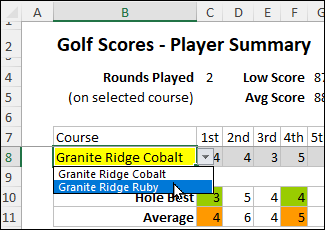
- In the multi-player workbook, you’ll select a player and a course, from the drop down lists. The summary then shows that player’s season results for that course.
Summary Sheet Results
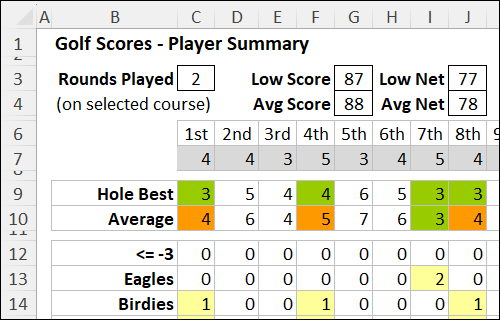
There are result calculations at the top, middle and bottom of the Summary sheet.
This summary is a quick way to spot the holes that you do well on occasionally, but not consistently.
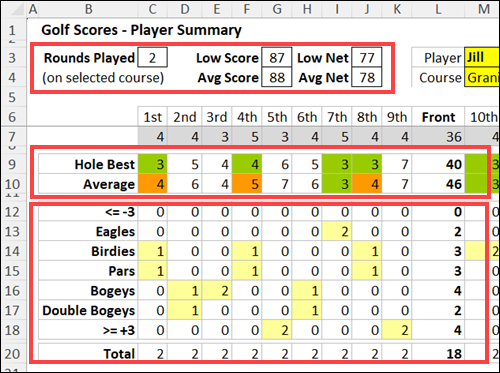
Here’s what’s in each section, for the selected player and course:
Top: Number of rounds played, and overall scores for the season . Below that, the pars for the selected course are listed
Middle: For each hole, the best score and average score for the season are shown. Par and below par scores are highlighted with conditional formatting.
Bottom: For each hole, the results are listed by result type – from below par to above par.
- How many times the player had each result, for each hole
- The most frequent result for each hole is highlighted in light yellow
Pivot Table Summary
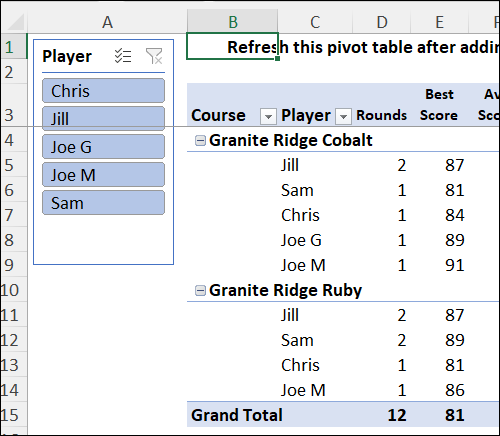
In the multi-player workbook, there’s a SummaryALL sheet, which has a pivot table, to summarize all the data for each season. You can learn more about pivot tables on my Contextures site.
The pivot table is connected to a slicer that has a button for each player’s name.
- Click on a slicer button to see that person’s results.
- Or select a few players to compare how the group is doing during the season.
Get the Excel Golf Score Tracker
To download the sample workbook for tracking golf scores, courses, players, and season summaries, go to the Golf Score Tracker page on my Contextures site.
Also, check out the Golf Tee Off Times page for another Excel golf template.
________________
Excel Golf Score Tracker by Player and Course

________________